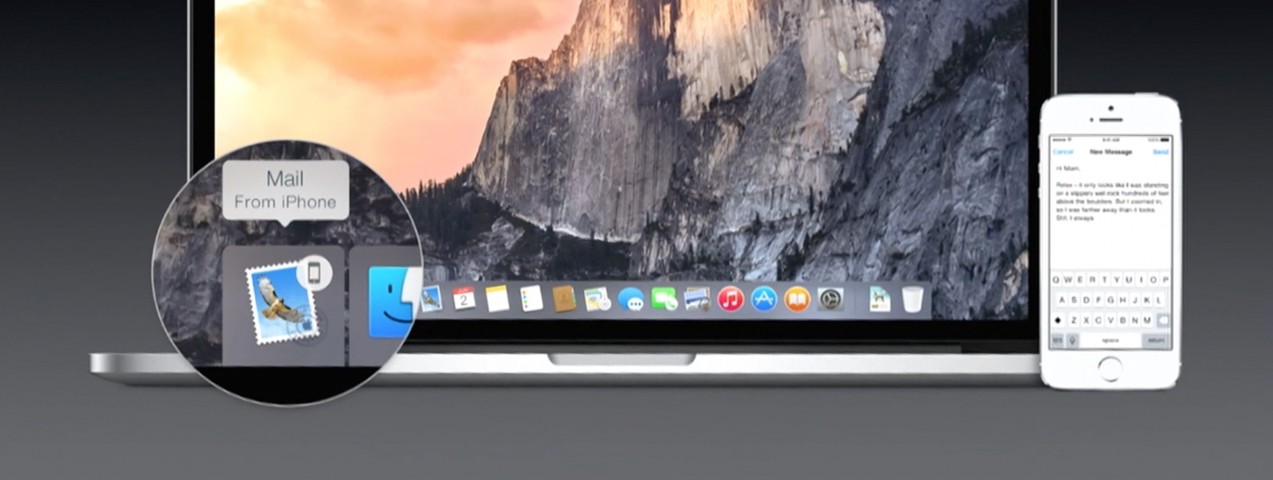
Experiencing Continuity Issues Between two MBP Retinas and an iPhone?

I use two Macs – and I have an iPhone 6 Plus. I’ve always been able to get Apple’s latest continuity feature to work between the iPhone, and any one of the two Macs – but never both at the same time. Further, I’ve never been able to get handoff to work between one mac to the other. Off and on, over the last two weeks, I dedicated my time and energy to getting continuity working between all devices properly.
First, what went wrong?
I suspect that my issues probably had something to do with my initial Mac setup. I used a TimeMachine backup from my first Mac as the source to set up the second Mac. Something about this procedure kept the iPhone from being able to distinguish between the two Macs. I’ve seen crazy behaviors. For example, under:
Settings → Messages → Text Message Forwarding 2 Devices >,
I have seen duplicate entries for my Mac device names. I’ve even seen device names toggle from one Mac to the other Mac after backing out of the list view, and immediately going back into the device list view.
No matter how carefully I logged out of iCloud, Messages, FaceTime, on all devices, rebooted, and signed back in with any possible combination you can imagine, handoff eventually broke while setting up the second device. I won’t even bother relating how many phone calls to AppleCare tech support, and the unproductive waste of time my last two hour appointment to the local Apple Store went.
So, here’s the fix the worked for me: Cobbling this and that together from the discussions forum from the Apple Support Communities.
- Log out of iCloud, Messages, FaceTime on all devices.
- On all MBPs, open KeyChain; Search for localDevice. Delete all
com.apple.ids: local device-AuthToken keys.
- Navigate to the hidden folder: ~/Library/Preferences. Delete these two plist files:
com.apple.ids.service.com.apple.madrid.plist
com.apple.imessage.bag.plist
- Finally, change your Apple ID Password. You can do this from My Apple ID.
It’s not necessary to change your Apple ID Password to get things working. I got handoff working flawlessly between all three devices without that step; but, I still had duplicate device names under Settings → Messages → Text Message Forwarding on my iPhone. Performing that step will clean up those ghosted device names.
Now, proceed to log into iCloud, on all devices. I also have Apple 2-Step authentication turned on, so I had to generate app-specific passwords for Messages and FaceTime in order to additionally log into those apps on the laptops. Go through the normal settings to turn on handoff features you want shared between your devices – and all should work normally.
If your having issues with continuity, and these steps did not work for you, I’d love to know about it.